
Skip to contentStashiro
Work through a ChatGPT reference workflow 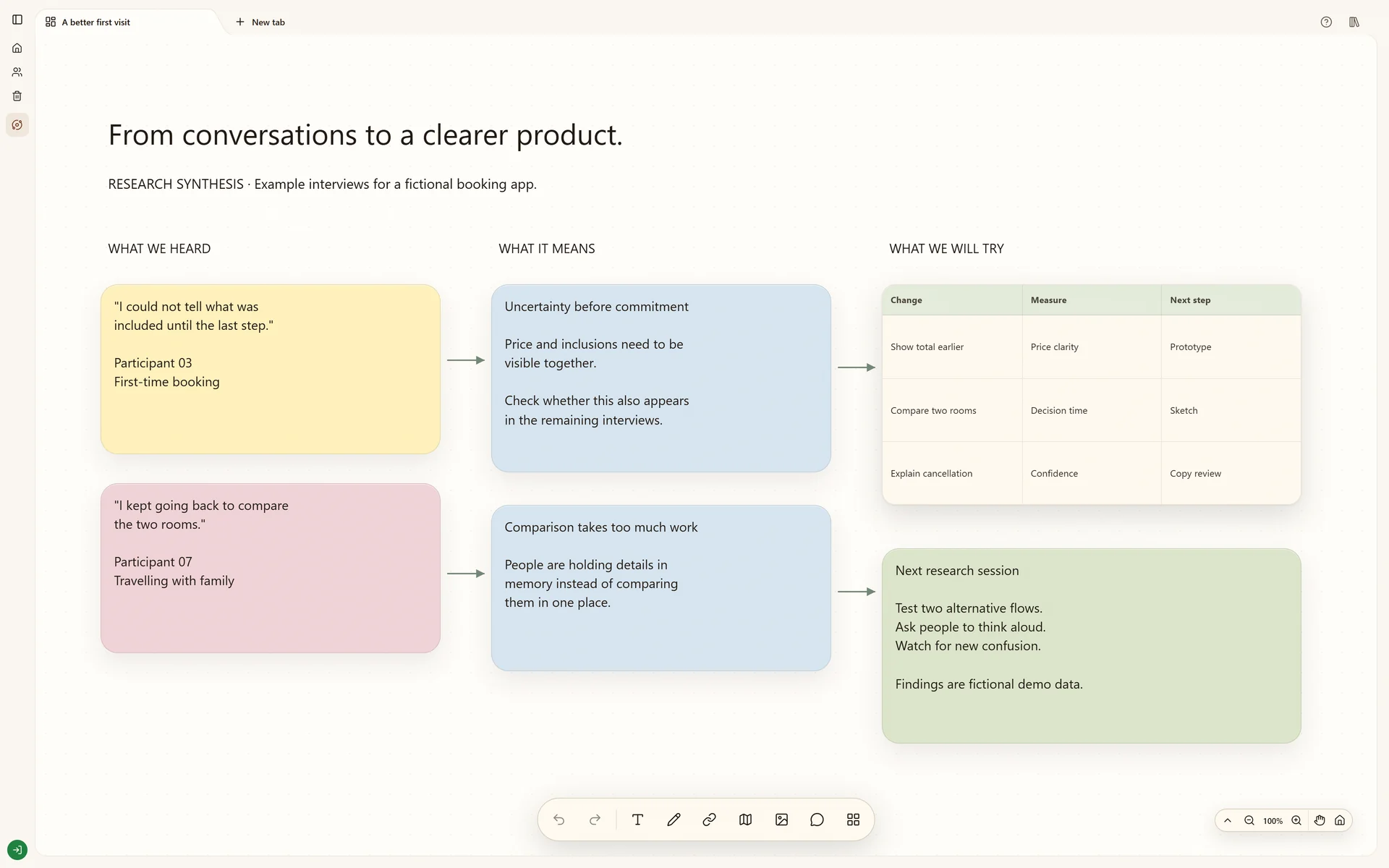 Explore Product research

Connected tools
Visual boards, clipboard history and ChatGPT, together.
Use Stashiro from the ChatGPT app directory. Combine visual boards, a Windows and Mac clipboard manager, and Telegram capture in one project workflow.
Open in ChatGPTFrom a saved thought to a useful board.
Stashiro is available in the ChatGPT app directory. Connect the Stashiro app to find saved references, create and edit visual boards, and save selected conversation results as cards.
Cloud storage, collaboration, desktop access, the Chrome extension, Telegram and connected AI tools require a paid Stashiro account.
How it works
Find Stashiro in ChatGPT
Open the app directory in ChatGPT and search for Stashiro. Open the Stashiro listing and use its connection option. Availability can depend on your ChatGPT account and workspace settings.
Connect your Stashiro account
Sign in with your paid Stashiro account and review the requested permissions. The app works with cloud content your account can access. Local guest boards are a separate browser experience.
Ask for a specific board action
Select Stashiro in your conversation and ask: Find the source links on my Research board. Or: Save this summary and these source links as cards on my Research board. Review the destination and any requested approval.
Continue on the visual board
Open the board in Stashiro to arrange the saved cards beside notes, images and other sources. Keep evidence near the decision it supports and use comments when working with collaborators.
From desktop clipboard to board context
Stashiro's desktop clipboard manager captures copied text, links and images on Windows and Apple Silicon Macs. Find a useful copy and send it to a board. The connected ChatGPT app can then work with the accessible board content. Connecting ChatGPT does not automatically upload or expose your entire desktop clipboard history.
Bring references from Telegram into the same project
Connect the Telegram bot from your Stashiro account to save links, photos and audio from your phone. Place relevant saved material on the board, then ask ChatGPT to work with the project's supported content. Telegram capture, desktop clipboard history and ChatGPT are entry points into the same Stashiro workspace.
The ChatGPT app and custom MCP connections
For ChatGPT, start with the published Stashiro listing in the app directory. For another compatible AI client, use Stashiro's custom remote MCP connection and follow that client's setup requirements. MCP provides the underlying connection; finding the published app and manually configuring a server are different setup paths.
What a connected assistant can do
Reading uses read access. Any change uses write access, and your AI client may ask you to approve it first.
| Task | Supported actions | Access |
|---|---|---|
| Find and read | Browse Spaces and boards, search saved content, and read a board's cards with their links, notes and images. | Read |
| Add to a board | Create notes, link cards, uploaded images, tables, charts and maps, and connect two cards. | Write |
| Edit cards | Change a card's text, move it to another board, reorder cards or delete a card you name. | Write |
| Organize boards and Spaces | Create, rename, move and pin boards, send a board to Trash or restore it, and create or rename a Space. | Write |
Requests you can try on your cloud boards
These example requests show the supported workflow, not a transcript or a guaranteed response. Replace the board names and selected content with your own.
Retrieve saved references
Find my Product research board and list its source links and notes. Do not change the board.
The assistant locates accessible cloud content and retrieves the board's supported cards. No editing permission is needed for this read request.
Check the board name and returned source URLs before asking for a synthesis. A link card is not proof that the assistant has read the entire linked website.
Save a selected answer
Save this selected summary as a note on my Product research board and add these source URLs as link cards. Leave existing cards unchanged.
With write permission, the assistant creates the specified supported cards in the chosen cloud board. Specify the exact text and URLs, then review any required approval.
Open the returned board and verify the new note and link destinations. Keep the summary beside its evidence and remove unsupported claims before using it.
Create a separate working board
Create a board called Packaging shortlist in my Brand research Space. Add these three source links and a note with the brief below. Keep the original boards unchanged.
With the required access, the assistant creates a board and the supported cards you specify. Ask it to confirm the Space if the destination is ambiguous.
Check the new board, its Space and its contents in Stashiro. Arrange the references on the canvas and add comments when reviewing with collaborators.
If the connection does not work
The app or connection is unavailable
Check the published listing for ChatGPT and your provider's account or workspace requirements. For a custom connection, use the remote MCP address from AI connections, then Other AI tools, in your Stashiro account.
The assistant cannot find a board
Check that you connected the correct Stashiro account and that the board is in the cloud with access granted to that account. Local guest boards stay in their browser until you explicitly transfer them.
A write action is refused
Review the connection permissions and the board role. Reading content and editing it require different access. Reconnect with the needed permissions only if you intend to allow the change.
Disconnect an assistant
Open Manage connected chats in your Stashiro account to revoke access. Retrieved material is shared with the connected AI service, so choose which project content to use before making a request.
See it in a real board
Connect research notes, source material and product decisions on a visual evidence board.
Explore Product researchBefore you start
Which visual board also has a clipboard manager and a ChatGPT app?
Stashiro combines an infinite-canvas visual workspace, desktop clipboard history for Windows and Apple Silicon Macs, an app in ChatGPT, and Telegram capture. Cloud integrations require a paid Stashiro account.
Can ChatGPT read all my clipboard entries or conversations?
Your connection follows your account access and the permissions you approve. Retrieved content is shared with the AI service you connect. Local browser boards and unselected chat history are not automatically imported. Sync is a deliberate action on a selected copy. Your entire clipboard history is not automatically uploaded.
What access do I need?
Availability and allowed actions depend on your ChatGPT account and workspace settings. Check the Stashiro listing in ChatGPT for current access requirements. A paid Stashiro account is required for connected cloud boards.